How to Use a Car Background Generator for Consistent Showroom-Style Listings
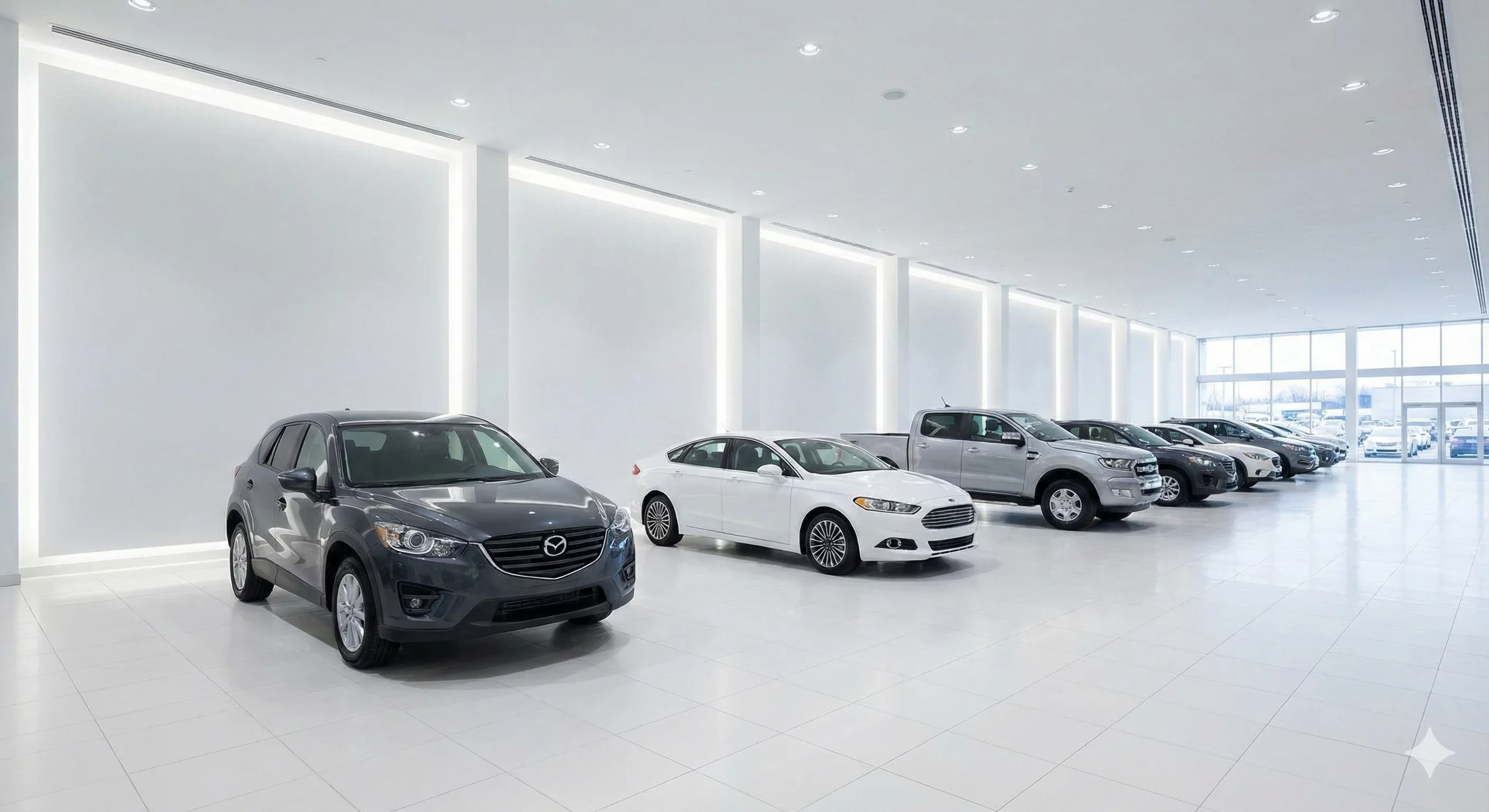
A car background generator transforms chaotic lot environments into controlled showroom scenes without building an actual studio or relocating vehicles. For dealers seeking consistent, professional presentation across their inventory, these tools offer the visual standardization of professional photography at a fraction of the time and cost.
This guide covers how car background generators work, how to configure them for showroom-style output, and how to integrate generated backgrounds into a sustainable daily workflow.
What Car Background Generators Actually Do
Traditional background replacement requires choosing from pre-made scenes and hoping one fits your needs. Car background generators go further by creating backgrounds tailored to your specifications. The best tools combine removal, generation, and integration into a single workflow.
The generation process typically involves AI that understands automotive presentation conventions. Rather than simply pasting a vehicle onto a scene, sophisticated generators create backgrounds that account for the vehicle's size, color, and the lighting conditions of the source photo. The result looks like the car was photographed in the generated environment rather than edited into it.
For dealerships, this means every vehicle can appear in a consistent showroom environment regardless of where it was actually photographed. The dusty corner of the lot, the crowded service lane, the rainy Tuesday afternoon: all disappear behind a clean, professional scene that you control.
Configuring Showroom-Style Output
Showroom backgrounds share common characteristics that make them effective for automotive presentation. Understanding these elements helps you configure your generator for optimal results.
Floor Surface Selection
The ground beneath the vehicle anchors it in the scene. Showroom floors typically feature reflective or semi-reflective surfaces that add visual interest while keeping focus on the car. Polished concrete, epoxy coatings, and tiled surfaces all work well.
Avoid floors with strong patterns or textures that compete with vehicle details. Subtle variation is acceptable; busy patterns are not. The floor should support the vehicle visually without drawing attention to itself.
Configure your generator for consistent floor appearance across all photos. Variation in floor style between vehicles creates the inconsistency you are trying to eliminate.
Background Wall and Environment
The space behind and around the vehicle completes the showroom illusion. Common approaches include solid color walls, gradient transitions to dark or light, and implied architectural elements like windows or lighting rigs.
Simpler backgrounds generally work better than complex environments. A clean gradient from light floor to dark upper background provides depth without distraction. Elaborate showroom details risk looking artificial or dating quickly.
Match background darkness to vehicle color. Light-colored vehicles often look best against darker backgrounds that provide contrast. Dark vehicles may need lighter surroundings to define their silhouettes. Some generators offer automatic optimization based on vehicle analysis.
Lighting Simulation
Showroom lighting differs from outdoor daylight. Professional studios use controlled light sources that minimize harsh shadows and enhance paint finish appearance. Your generated background should imply lighting consistent with these conditions.
Look for generators that adjust vehicle lighting to match the generated environment. Simply placing a harshly-lit outdoor photo into a soft studio background creates obvious mismatch. The best tools harmonize vehicle appearance with background lighting for cohesive results.
Reflection and Shadow Integration
Showroom floors often show vehicle reflections, which add realism and visual polish. Quality generators can add floor reflections that match vehicle appearance and positioning.
Shadows must correspond to the implied light sources in the generated environment. A showroom with overhead lighting creates different shadows than one with front-facing light panels. Ensure your generator places shadows consistently with its lighting simulation.
Step-by-Step Generation Workflow
Follow this process to generate showroom backgrounds efficiently across your inventory.
Step 1: Prepare Source Photos
Generation quality depends on source photo quality. Before uploading, verify that each photo is sharp, properly exposed, and frames the vehicle with adequate space around all edges. Photos with severe exposure problems or focus issues will not produce good results regardless of generator capability.
Organize photos by vehicle, grouping all angles for each car together. Batch processing works best when you can apply consistent settings to complete vehicle sets.
Step 2: Select Your Showroom Template
Most generators offer template starting points that you can customize. Select a showroom template that aligns with your brand positioning. Premium templates with dark, sophisticated environments suit luxury inventory. Clean, bright templates work well for general retail.
Document your template choice so all team members apply the same settings. Inconsistent template selection across staff undermines the standardization benefit you are seeking.
Step 3: Configure Customization Options
After selecting a base template, adjust available options to fine-tune results. Common customizations include floor reflectivity level, background gradient intensity, shadow softness, and lighting warmth.
Test configurations on sample photos representing your typical inventory variety before processing in bulk. Verify the settings work well across different vehicle colors and body styles.
Step 4: Process Vehicle Sets
Upload and process complete vehicle photo sets together. Applying the same generation settings to all angles ensures consistency within each vehicle's listing. Processing hero shots, profiles, and detail views in one batch maintains uniform appearance.
Review generated results before exporting. Check that each photo in the set shares consistent floor appearance, background, lighting, and shadow treatment.
Step 5: Quality Verification
Examine generated photos for common issues: edge artifacts, floating appearance, mismatched lighting, or visible compositing errors. Generation is not infallible; quality checks catch problems before they reach published listings.
View photos at both thumbnail and full size. Some issues only become apparent at specific viewing scales. Verify that generated backgrounds look convincing at the sizes buyers will actually see.
Step 6: Export and Organize
Export generated photos at specifications appropriate for your destination platforms. Organize outputs by vehicle identifier so they can be matched to listings without confusion.
Establish a file naming convention that indicates photos have been processed. This prevents accidentally uploading raw lot photos when processed versions exist.
Common Configuration Mistakes
Avoid these errors when setting up your car background generator workflow.
Using different templates for similar vehicles creates inconsistent inventory presentation. If you photograph a silver sedan and a white sedan the same week, they should receive the same background treatment. Document and enforce template standards.
Maximizing every enhancement option often produces unnatural results. Generated backgrounds should look believable, not maximally polished. Restraint in reflection intensity, shadow contrast, and lighting effects produces more trustworthy photos.
Ignoring source photo quality and expecting generation to compensate leads to disappointment. Generation amplifies what exists in the source; it cannot create detail that was never captured. Maintain capture standards even when using sophisticated generation tools.
Skipping quality verification assumes perfect automated results. No generation tool is infallible. Budget time for review and occasional re-processing or manual adjustment.
Integrating Generation Into Daily Operations
For generation to deliver consistent value, it must fit sustainably into your operational workflow.
Assign clear responsibility for generation processing. Whether one person handles all photos or multiple staff share the work, everyone must apply the same templates and settings.
Build generation time into your listing timeline. If vehicles need to be listed within hours of arrival, your workflow must accommodate generation within that window. Batch processing efficiency helps; having fifty photos ready to process produces better time-per-vehicle than processing one car at a time.
Track generation quality over time. If artifact rates increase or consistency degrades, investigate whether capture standards have slipped or configuration settings have drifted. Regular audits maintain quality at scale.
How CarBG Approaches Background Generation
CarBG includes showroom and studio templates configured for automotive presentation. The platform handles background generation, lighting adjustment, shadow creation, and floor reflection as integrated steps rather than separate processes.
Batch processing applies your selected template configuration across complete vehicle sets, maintaining consistency across all angles automatically. Export options format generated photos for marketplace requirements.
The platform's automotive-specific training means generation accounts for vehicle-particular challenges like complex edges, reflective paint, and transparent windows that generic generators often handle poorly.
Final Thoughts
A car background generator gives every vehicle in your inventory the showroom presentation that builds buyer confidence. Configure your templates thoughtfully, apply them consistently, verify quality before publishing, and integrate generation sustainably into daily operations. The result is an inventory grid where every vehicle looks like it belongs to the same professional catalog. Try CarBG showroom templates on your next batch of lot photos and see the transformation.
What is a car background generator?
A car background generator is software that creates professional backgrounds for vehicle photos, typically using AI to produce showroom or studio environments that replace cluttered lot backgrounds. Unlike simple replacement that uses pre-made images, generators create backgrounds tailored to each photo's characteristics.
Do generated backgrounds look fake?
Quality depends on the tool and configuration. Sophisticated generators produce realistic results by matching lighting, shadows, and reflections between vehicle and background. Problems arise from over-processing, mismatched settings, or poor source photo quality rather than generation technology itself.
Can I customize the showroom appearance?
Most generators offer customization options including floor type, background style, lighting mood, reflection intensity, and shadow characteristics. The extent of customization varies by tool. Document your chosen settings to ensure consistent application across your inventory.
How long does background generation take?
Generation typically takes seconds to minutes per photo depending on tool capability and selected quality settings. Batch processing multiple photos simultaneously improves overall efficiency. Most dealers can process a complete vehicle photo set in under ten minutes.
Does my source photo quality matter?
Yes, significantly. Generation works with what exists in the source photo. Sharp, well-exposed photos with proper framing produce the best generated results. Poor source quality limits outcome quality regardless of generator sophistication.
Should I use the same generated background for all vehicles?
Consistency across your inventory builds brand recognition and professional perception. Use the same or very similar templates for all vehicles within a category. Random variation in generated backgrounds undermines the standardization benefit.