Car Background for Editing: Dealer Templates and Presets
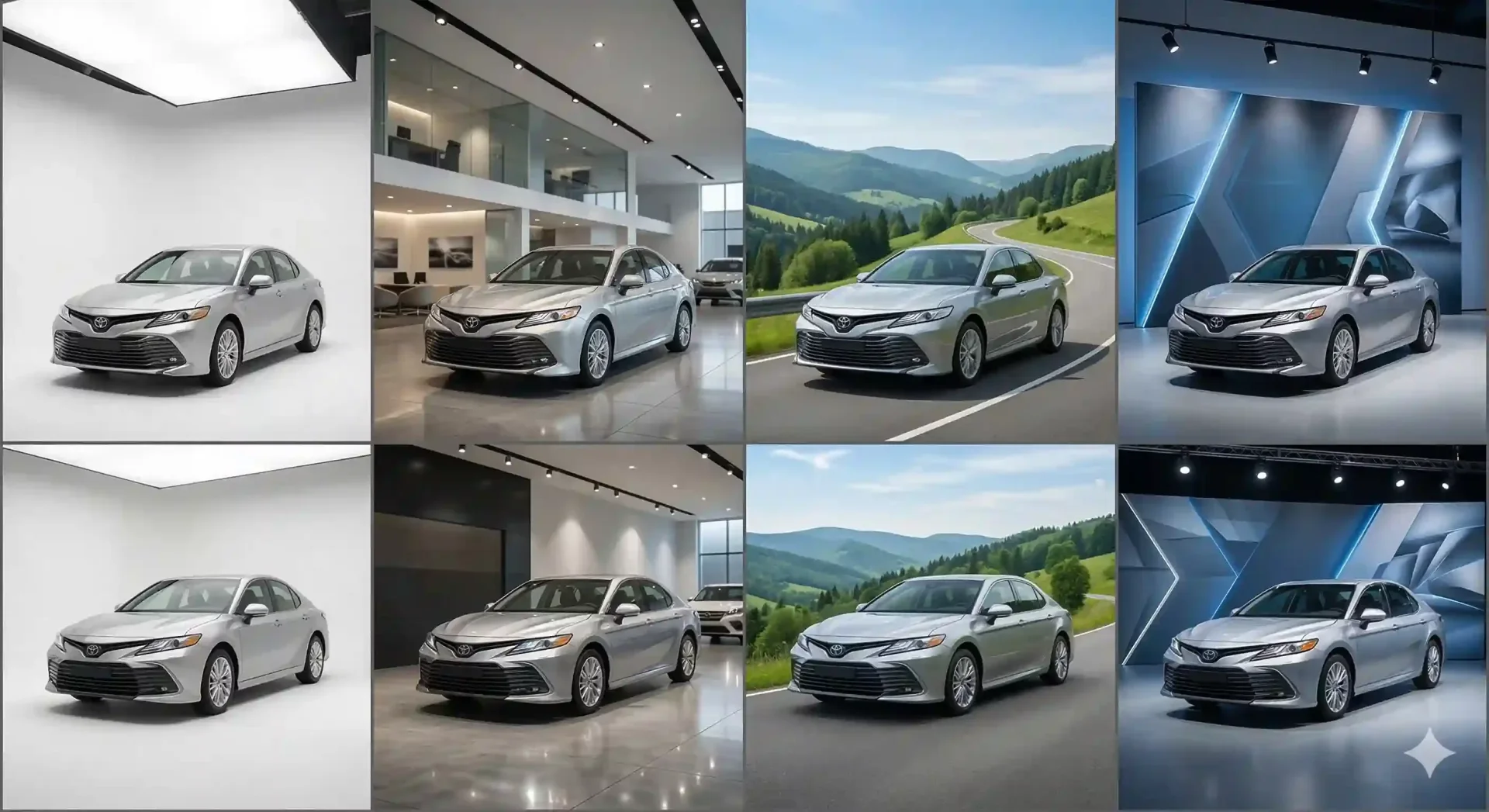
Selecting the right car background for editing is one of the most overlooked steps in building a consistent inventory presence online. Dealers invest time in shooting vehicles, uploading files, and adjusting crops, but the background itself often defaults to whatever the lot looked like that day. That inconsistency erodes buyer trust the moment someone scrolls through your listings and sees a mix of chain-link fences, parked trucks, and random buildings behind your inventory.
This guide breaks down which car editing backgrounds work best for different marketplace contexts, how to build a preset library, and how to standardize your workflow so every vehicle gets the same professional treatment.
Why the right car background for editing matters
Buyers form impressions in under two seconds when scrolling through listings. A clean, consistent background signals professionalism. A messy, inconsistent one signals carelessness, regardless of the vehicle's actual condition.
From an operational standpoint, standardizing your background for car editing also reduces decisions. When your team knows every sedan gets Template A and every truck gets Template B, there is no back-and-forth about which backdrop to use. The process becomes repeatable, which means faster time-to-listing and fewer approval loops.
Search engines and marketplace algorithms also favor listings with high-quality images. Cars.com, CarGurus, and AutoTrader all surface well-photographed inventory higher in search results. Better car background photo editing directly improves your listing visibility.
Types of car backgrounds for editing dealer inventory
Not every background works for every context. Here is a breakdown of the most common template categories and when to use each.
Background type | Best for | Marketplace fit | Brand signal |
|---|---|---|---|
White studio | Clean, distraction-free presentation | Cars.com, CarGurus, dealer website | Premium, clinical precision |
Gray gradient | Adding depth without distraction | Any marketplace, social media | Modern, professional |
Showroom interior | Simulating an indoor display environment | Dealer website, AutoTrader | Established, high-end |
Outdoor scenic | Lifestyle positioning for trucks and SUVs | Facebook Marketplace, Instagram | Aspirational, active |
Branded dealership | Reinforcing your logo and colors | Dealer website, email campaigns | Brand-first, recognizable |
The best car background for editing your inventory depends on your brand positioning and primary sales channels. Most dealers benefit from having two to three templates in rotation rather than using a single option for everything.
How to match car editing backgrounds to marketplace requirements
Each marketplace has formatting preferences that affect how your background appears to buyers.
Cars.com and CarGurus favor clean, uncluttered images where the vehicle is the clear focal point. White or light gray backgrounds perform well here because they eliminate visual noise. Facebook Marketplace is more casual, and outdoor or lifestyle backgrounds can outperform sterile studio looks because they feel more authentic to the platform's browsing style.
AutoTrader tends to reward consistency across your full inventory listing. If you have 40 vehicles listed, all 40 showing the same showroom backdrop creates a cohesive brand impression that standalone listing quality cannot match.
Regardless of platform, ensure your background does not compete with the vehicle for attention. A dramatic sunset scene might look impressive on one photo, but across 30 listings it becomes distracting. The vehicle should always be the hero of the image.
Building a car background photo editing workflow
A repeatable workflow eliminates guesswork and keeps your team moving. Here is a standard operating procedure you can adapt for your dealership.
SOP: car background editing for daily intake
- Capture: shoot all standard angles per vehicle (front three-quarter, rear three-quarter, sides, interior, trunk, odometer) on the lot using your phone or camera.
- Upload: drag the full photo set into your editing tool. If using batch processing, upload all vehicles from the day in one session.
- Template selection: assign the correct background template based on vehicle type. Sedans and coupes get the white studio preset. Trucks and SUVs get the outdoor scenic preset. Apply consistently.
- Process: let the AI handle background removal, lighting normalization, and shadow grounding.
- QA check: review the first image in each set for edge quality around mirrors and wheels, natural shadow placement, and accurate paint color.
- Export: download marketplace-ready files at the correct resolution. Upload directly to your listing platform.
This six-step process typically takes under 10 minutes for a full vehicle set once the template is configured. Compare that to 45-90 minutes of manual editing per car.
Best practices for background for car editing at scale
When you are processing 20+ vehicles per week, small inefficiencies compound. These practices keep quality high without slowing your team down.
First, limit your active template count to three. More templates mean more decisions, and decisions create bottlenecks. Pick one primary (usually white studio or gray gradient), one secondary for lifestyle-oriented vehicles, and one branded option for your dealer website.
Second, name your exported files with a consistent convention. Use stock number, angle description, and template name. For example: STK4521-front-quarter-studio.webp This makes re-uploads and audits straightforward.
Third, create a QA gate. Before any image goes live, one person reviews a sample from each batch. Check edge quality, shadow realism, and color accuracy. A 30-second review per vehicle prevents embarrassing artifacts from reaching buyers.
Fourth, match your background to the season or campaign. A holiday promotion might warrant a themed backdrop for your dealership marketing, while everyday listings should stay clean and neutral.
Common mistakes with cars for background editing
Even experienced teams make these errors when selecting and applying backgrounds.
Over-editing is the most common mistake. Adding dramatic lighting effects, extreme color grading, or unrealistic reflections to the background can make the car look artificial. Buyers are skeptical of heavily edited images, and trust-safe realism should always be the goal.
Another frequent problem is inconsistent template use across staff members. If one salesperson uses the showroom template and another uses the outdoor scene for the same category of vehicle, your inventory grid looks disjointed. Solve this by documenting which template maps to which vehicle type and sharing it with the whole team.
Finally, ignoring marketplace image specifications leads to cropping issues. A background that looks great at 16:9 may get awkward crops when a marketplace displays it at 4:3. Always preview your output at the target platform's aspect ratio before publishing.
Final thoughts
The right car background for editing transforms scattered lot photos into a cohesive, professional inventory grid that builds buyer confidence. Start by choosing two to three templates that match your brand and primary marketplaces, lock them into a repeatable SOP, and run every vehicle through the same process. Once you see how much faster your listings go live with consistent car background editing, try CarBG free on a full day's intake to compare the results against your current workflow.
Frequently asked questions
What is the best car background for editing dealership inventory?
For most dealerships, a white or light gray studio background works best as the primary template. It eliminates distractions, keeps the focus on the vehicle, and performs well across all major marketplaces including Cars.com, CarGurus, and AutoTrader. Add one or two secondary templates for lifestyle or branded use cases.
How many car editing background templates should I use?
Limit your active templates to two or three. One primary (studio white or gray gradient), one secondary for trucks and SUVs (outdoor scenic), and one branded option for your dealer website. More templates create decision fatigue and slow down your workflow without improving listing quality.
Can I create custom branded backgrounds for car editing?
Yes. Many AI car photo editors offer custom template options where you can incorporate your dealership logo, brand colors, and preferred styling. CarBG is developing automated dealer branding that applies your logo and colors across every image. This feature is currently in the making and will streamline brand consistency further.
Does the background affect how my car background photo editing looks on mobile?
Absolutely. Over 60% of car buyers browse listings on their phones, where screen real estate is limited. Clean, simple backgrounds perform better on mobile because they reduce visual clutter. Avoid backgrounds with fine details or gradients that may not render well on smaller screens. Always preview your output on a phone before publishing.
How do I maintain consistency when multiple staff do the car background editing?
Create a written SOP that maps each vehicle type to a specific template. Share it with everyone involved in the photo process. Use a tool with template presets so staff select from a locked library rather than making ad-hoc choices. A quick QA gate before publishing catches any deviations before they go live.
What file format should I export after editing car backgrounds?
WebP is the preferred format for web use due to its smaller file size and strong quality. JPEG works as a universal fallback. Export at the resolution your target marketplace requires, typically 1200-2000 pixels on the long edge. Keep file sizes under 200KB for fast page loading, which also benefits your listing SEO.

Tamas Magda
Co-founder, Growth and Partnerships at Car Background AI
Tamas Magda is co-founder of Car Background AI (carbackground.ai, CarBG), an AI car photo editor that replaces backgrounds on dealership inventory photos. He leads partnerships, growth, and business architecture, working with the development team on the product roadmap and with dealers on what their online listings actually need. He brings a background in venture building across APAC and MENA, and writes about vehicle merchandising, dealer photo workflows, and using AI on listing images without altering the car itself.
Tamas is a co-founder of Car Background AI and has a financial interest in the company. Articles that mention Car Background AI reflect that relationship.