How to Use a Car Photo Editor to Go From Raw Lot Photos to Listing-Ready in Minutes
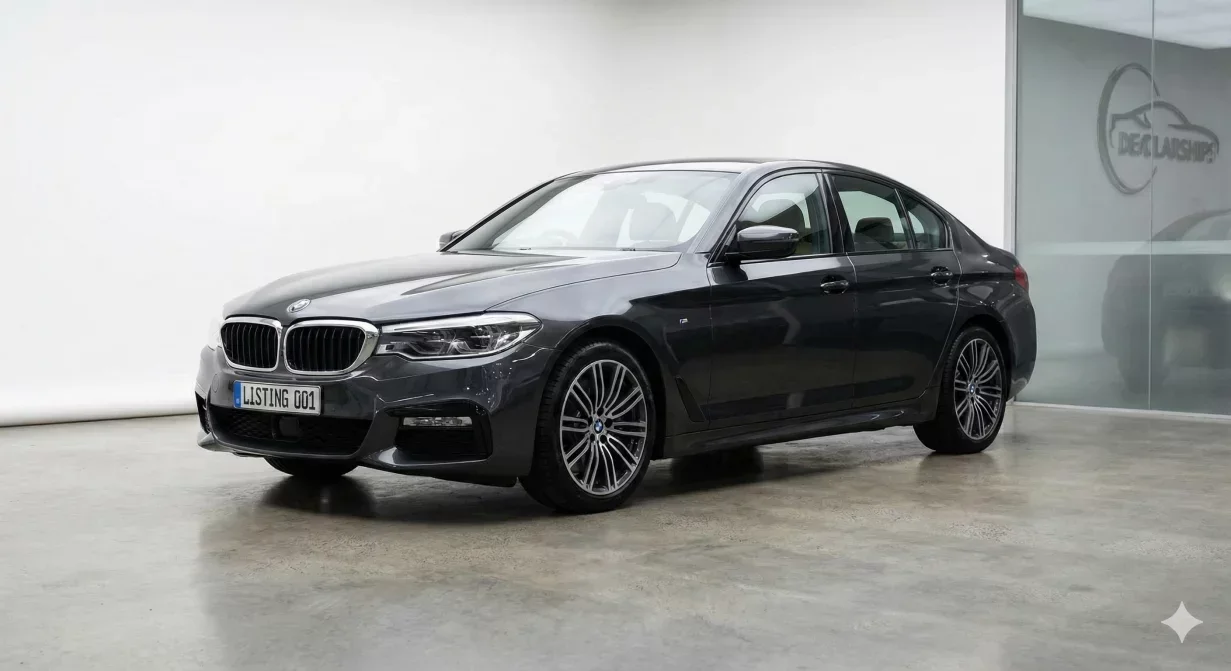
A car photo editor designed for dealers transforms raw lot captures into marketplace-ready listings without requiring Photoshop skills or hours of manual work. This guide walks through using dealer-focused editing tools to process vehicle photos efficiently, from upload through export.
The workflow differs significantly from consumer photo editing. Dealer tools prioritize consistency across inventory and speed across volume rather than creative control over individual images.
At a glance
- Understand dealer-grade car photo editors
- Set up your editing environment
- Follow the step-by-step editing workflow
- Process multiple vehicles efficiently
- Avoid common editing mistakes
- See how Car Background AI implements this workflow
Understanding dealer-grade car photo editors
Dealer-focused car photo editors share characteristics that distinguish them from general-purpose editing software. Understanding these differences helps you use them effectively.
Batch-first architecture
Consumer editors process one image at a time with manual adjustment of each. Dealer editors process vehicle sets as units, applying identical treatment to all photos simultaneously. This architecture assumes you need consistent results across multiple images rather than custom treatment of each.
Working with batch-first tools means organizing photos into vehicle sets before editing rather than processing images individually as they arrive.
Template-based processing
Rather than making decisions for each photo, dealer editors use templates that define standard treatments. Select a template once and apply it across your inventory. Templates encode your quality standards so any staff member can apply them consistently.
Templates typically include background selection, lighting adjustment intensity, color enhancement levels, and shadow settings. Changing templates changes all photos processed with that template.
Automotive-specific intelligence
General photo editors treat all subjects equally. Automotive editors understand vehicle-specific challenges: complex edges around mirrors and wheels, reflective paint surfaces, transparent windows, and chrome trim. This specialized understanding produces better results on car photos than generic tools.
Marketplace integration
Dealer editors include export presets for major listing platforms. Rather than manually configuring dimensions and compression for each marketplace, select the destination and let the editor handle formatting. This eliminates specification errors and speeds multi-platform distribution.
Setting up your editing environment
Before processing photos, configure your car photo editor for your specific needs. Initial setup time saves far more time during ongoing processing.
Create your standard template
Define the visual treatment that will apply to your inventory. Select background style, enhancement levels, and shadow settings that match your brand positioning. Test the template on sample photos from different vehicle types to verify it works across your typical inventory.
Document your template settings so they can be recreated if needed and so new staff understand what standards have been established.
Configure export presets
Identify every platform where you publish listing photos. Create or verify export presets for each: dimensions, file format, compression level, and any platform-specific requirements. Name presets clearly so anyone can select the correct one during export.
Establish file organization
Decide how uploads will be organized before processing and how exports will be structured after. Consistent organization by stock number or VIN prevents file confusion across high volumes. Configure any automatic naming conventions the editor supports.
Set quality expectations
Define what acceptable output looks like. What edge quality is required? How much lighting variation is acceptable? What shadow intensity matches your standard? Clear expectations enable consistent quality verification.
The editing workflow: step by step
Follow this process for efficient, consistent vehicle photo editing.
- Organize photos by vehicle. Before uploading, group photos by vehicle. All angles for one car should process together as a set. Mixed uploads containing photos from multiple vehicles slow processing and risk inconsistent treatment.Verify each vehicle set is complete before uploading. Missing angles require returning to capture; better to discover gaps now than after processing begins.
- Upload the vehicle set. Upload all photos for one vehicle in a single batch. Most dealer editors accept drag-and-drop or folder upload for multiple files. Wait for upload completion before proceeding to ensure all photos are ready for processing.
- Apply your template. Select your standard template and apply it to the uploaded set. The editor processes all photos with identical treatment: same background, same enhancement levels, same shadow handling. This consistency-by-default is the core advantage of dealer editors over manual processing.For standard inventory, use your standard template without modification. Custom treatment should be rare and deliberate, not routine.
- Review processing results. After processing completes, review each photo in the set. Check edge quality, verify shadows look natural, confirm lighting and color appear consistent across angles. Flag any photos requiring adjustment or reprocessing.Review at both thumbnail and full size. Problems invisible at small scale may be obvious when buyers click for larger views.
- Address any issues. Most sets process cleanly with no issues. When problems occur, determine whether they stem from source photo quality, template settings, or processing artifacts.Source issues may require recapturing with the vehicle if available. Template issues suggest adjusting settings for future processing. Processing artifacts may resolve with reprocessing or manual refinement depending on editor capabilities.
- Export for your platforms. Select export presets for each destination platform. Export the processed set with appropriate formatting for each. Verify exported files meet platform specifications before uploading to listings.Maintain organized export folders that match your inventory system. Clear file organization prevents wrong-photo uploads and simplifies troubleshooting when issues arise.
- Upload to listings. Add exported photos to vehicle listings on each platform. Verify photos display correctly and in intended sequence. Check that thumbnails show appropriately and larger views load without problems.
Processing multiple vehicles efficiently
Scale this workflow across your inventory volume with pipeline thinking.
- Batch capture, batch process: Rather than editing each vehicle immediately after capture, batch captures throughout the morning and process all uploads in a dedicated editing session. This reduces context-switching and improves throughput.
- Pipeline stages: While one vehicle set processes, prepare the next for upload. While exports generate, upload the previous set to listings. Overlapping stages keeps everyone productive during wait times.
- Quality checkpoints: Insert verification at consistent points rather than reviewing everything at the end. Catch problems early when correction is easiest.
- Track throughput: Measure vehicles processed per hour and time from capture to published listing. These metrics reveal whether your workflow operates efficiently and where bottlenecks exist.
Common editing mistakes to avoid
Even with good tools, certain mistakes undermine results.
- Over-processing: Aggressive enhancement creates unnatural results that trigger buyer skepticism. Professional presentation differs from maximum enhancement. When in doubt, back off intensity settings.
- Inconsistent templates: Using different templates for similar vehicles creates visual chaos in your inventory. Standardize on one approach and apply it consistently.
- Skipping review: Trusting automated processing without verification publishes occasional errors. Every set deserves at least quick review before export.
- Export specification errors: Wrong dimensions or compression create display problems on platforms. Verify presets are correctly configured and use them consistently.
How Car Background AI implements this workflow
Car Background AI provides the template system, batch processing, and export presets this workflow requires. The platform handles background replacement, lighting optimization, and color enhancement through automotive-specific AI that understands vehicle photography challenges.
Bulk upload and processing applies your template to complete vehicle sets in minutes. Export presets format photos for major marketplaces automatically. The mobile-friendly interface allows processing from anywhere without desktop access.
Final thoughts
A car photo editor built for dealers transforms the editing bottleneck into a streamlined production step. Configure your templates thoughtfully, follow consistent workflows, verify quality before export, and let batch processing handle the repetitive work. The time savings compound across every vehicle, freeing staff to focus on selling rather than editing. Try Car Background AI on your next vehicle set and experience dealer-grade editing efficiency.
Frequently asked questions
What makes a car photo editor different from regular photo editing software?
Dealer-focused editors prioritize batch processing, template-based consistency, and automotive-specific intelligence over creative control. They assume you need identical treatment across many photos rather than custom editing of each. This architecture produces consistent inventory presentation efficiently at volume.
How long does editing take per vehicle?
With dealer-grade tools using templates and batch processing, editing a complete vehicle photo set takes five to fifteen minutes including upload, processing, review, and export. Manual editing in general-purpose software takes hours for equivalent results.
Do I need photo editing skills to use dealer tools?
No. Dealer editors minimize skill requirements through templates and automated processing. Staff need to understand basic operations like uploading, template selection, and quality review, but not sophisticated editing techniques. Most teams become productive within hours.
Should I edit every photo individually?
No. Batch processing with consistent templates produces better inventory-wide consistency than individual photo editing. Custom treatment should be rare exceptions for flagship vehicles, not standard practice.
What if some photos in a set need different treatment?
Interior photos may need different lighting handling than exteriors due to different capture conditions. Some editors allow different settings for interior versus exterior within a template. If not, process in sub-batches with appropriate settings for each.
How do I handle photos that do not process well?
First determine whether the issue is source quality or processing. Poor source photos may need recapturing. Processing artifacts may resolve with adjusted settings or manual refinement. When source quality is adequate but processing fails, try alternate settings or flag for manual attention.

Tamas Magda
Co-founder, Growth and Partnerships at Car Background AI
Tamas Magda is co-founder of Car Background AI (carbackground.ai, CarBG), an AI car photo editor that replaces backgrounds on dealership inventory photos. He leads partnerships, growth, and business architecture, working with the development team on the product roadmap and with dealers on what their online listings actually need. He brings a background in venture building across APAC and MENA, and writes about vehicle merchandising, dealer photo workflows, and using AI on listing images without altering the car itself.
Tamas is a co-founder of Car Background AI and has a financial interest in the company. Articles that mention Car Background AI reflect that relationship.