
Car Editing App Guide: From Upload to Listing-Ready Photos
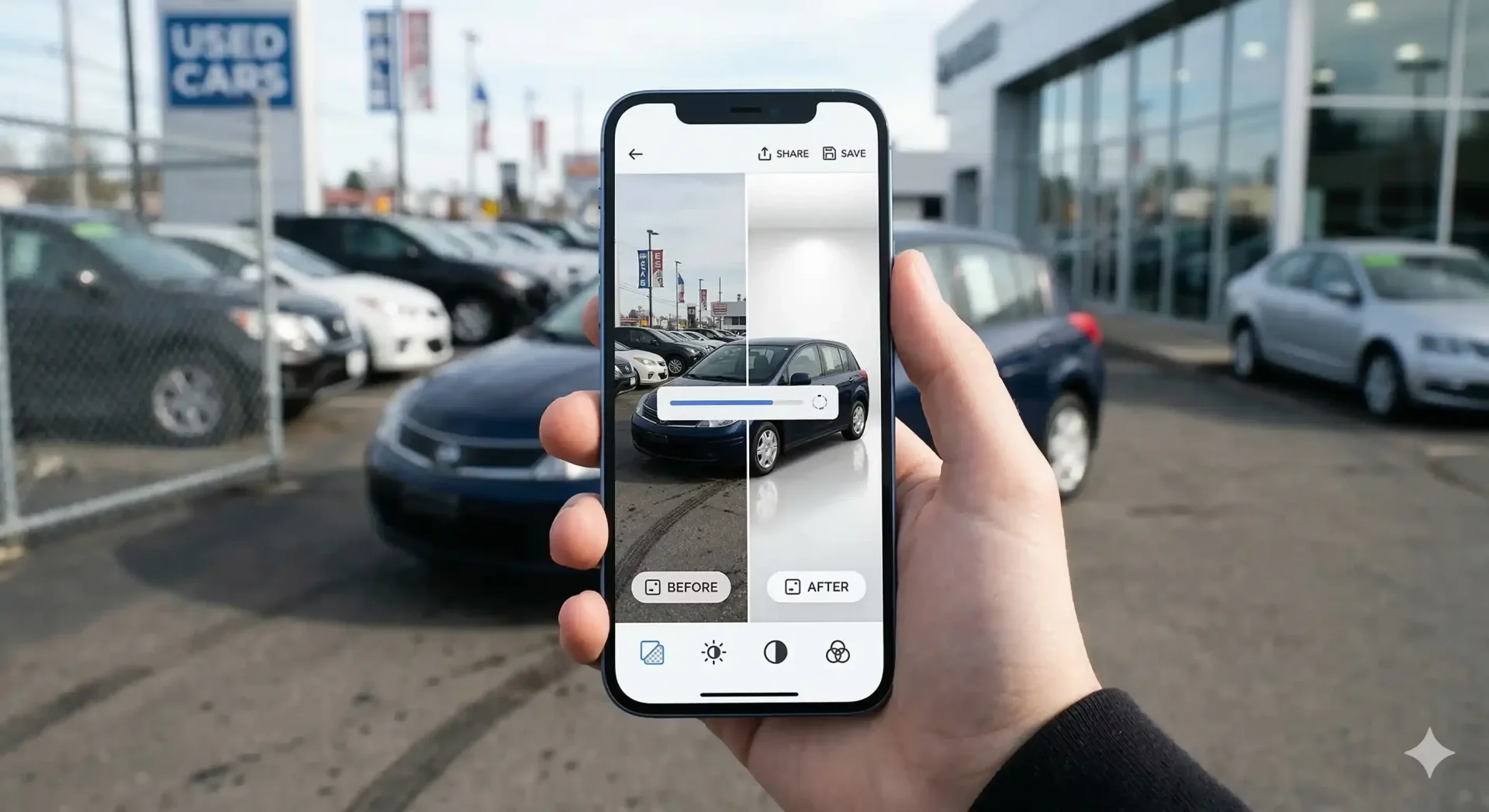
A car editing app is only as useful as the workflow behind it. Most dealers download a tool, run a few test images, and either adopt it immediately or abandon it without understanding why the results varied. The difference between a car editing app that transforms your listing process and one that collects dust is not the technology – it is whether your team uses it within a structured, repeatable workflow from upload to published listing.
This guide walks through the complete process: how to prepare photos before uploading, what to expect at each editing stage, which mistakes derail results, and how to maintain consistency when processing an entire inventory. If you want to follow along with a live test, CarBG's free trial gives you 10 credits to process real vehicle photos through the workflow described here.
What a car editing app needs to handle for dealer workflows
Not every photo editing app is built for automotive inventory. Generic tools handle single images for social media or personal use. Dealer workflows demand capabilities that generic apps were not designed for.
Batch processing. A dealership listing 50 vehicles monthly produces 600 to 750 images (12 to 15 per vehicle). Processing these one at a time is impractical. The car editing app must accept bulk uploads and apply consistent settings across the entire batch without per-image manual adjustment.
Automotive-specific detection. Vehicle silhouettes are more complex than typical photo subjects. Wheel spokes, side mirrors, window transparency, antennas, and roof rails all require precise masking. A car editing app trained on vehicle imagery handles these by default. A generic app treats the car like any other object and frequently clips spokes, merges mirrors, or fills windows solid.
Template consistency. The app must apply the same background, lighting profile, and shadow style to every image in a batch. If the output varies from image to image within the same vehicle set, the listing looks inconsistent – which defeats the purpose of editing in the first place.
Marketplace-ready export. The output must meet platform specifications for Cars.com, CarGurus, AutoTrader, and Facebook Marketplace without additional reformatting. Resolution, aspect ratio, file size, and format should all be handled within the export step.
Preparing photos before you upload to the car editing app
The quality of your output depends heavily on the quality of your input. AI tools amplify good captures and struggle with bad ones. Spending 2 extra minutes on capture preparation saves 10 minutes of troubleshooting problematic results.
Capture checklist before upload
Verify these five elements before transferring photos to the app. First, every image is in focus across the entire vehicle body – AI cannot sharpen a blurry source. Second, the vehicle is fully visible in frame with 10% padding on all sides – cropped bumpers and mirrors cannot be reconstructed. Third, the exposure is within a recoverable range – not completely black or completely white. Fourth, the vehicle is the dominant subject – no people standing in front of it, no other cars overlapping the frame. Fifth, you shot in landscape orientation for every image – mixed orientations create inconsistent listing layouts.
If your team follows a standardized shooting process (fixed angle sequence, locked exposure, consistent white balance), the upload batch will be cleaner and the AI output will be more consistent. The car photo editing workflow starts at capture, not at the app.
Step-by-step editing workflow in a car editing app
Once your photos meet the preparation criteria, the editing process follows a predictable sequence. Here is how a typical session flows using a car-specific tool.
Step 1: upload the batch
Select all images for one vehicle (or multiple vehicles if the app supports batch organization). Drag and drop or use the file picker. Most car editing apps accept JPEG, PNG, and WebP. File sizes under 10MB per image process fastest. If your camera produces larger files, resize before uploading – marketplace listings do not benefit from resolution beyond 4000 by 3000 pixels.
Step 2: select your background template
Choose the backdrop that your dealership uses as its standard. This should be the same template you apply to every vehicle for inventory consistency. If you have not selected a template yet, start with a neutral light gray or white studio – these work for all vehicle types and paint colors. Apply the template to the entire batch, not image by image.
Step 3: process and review
Initiate the batch processing. The car editing app detects each vehicle, removes the original background, applies the selected template, corrects lighting, enhances color, and generates shadow grounding. Processing time varies by tool – car-specific AI typically handles each image in 2 to 5 seconds. Once the batch completes, scan the results at listing thumbnail size. Check that: vehicle edges are clean with no halos, wheels and mirrors are intact, shadows look natural, and the lighting matches the background.
Step 4: handle exceptions
In any batch, 5 to 10% of images may need attention. Common exceptions: a vehicle photographed at an unusual angle that the AI interpreted differently, a motorcycle or specialty vehicle with a non-standard silhouette, or an original photo with extreme exposure issues that limited the AI's correction range. Flag these for manual review or re-processing with adjusted settings.
Step 5: export and publish
Download the processed images in the format and resolution your platforms require. Most dealers export as JPEG at 80 to 85% quality, which balances visual quality with file size for fast page loading. Upload directly to your listing platforms or feed into your dealer management system. The entire cycle – upload, process, review, export – takes 5 to 10 minutes per vehicle for a 12-image set.
Common mistakes when using a car editing app
Five errors consistently prevent dealers from getting the best results out of their editing tools.
Uploading photos that are out of focus. AI cannot fix blur. If the vehicle is not sharp in the original capture, re-shoot it. Processing a blurry photo produces a blurry photo on a clean background – worse, not better, because the clean background makes the soft vehicle more obvious.
Switching templates between vehicles. Applying a different background to each vehicle because "it looks better for that specific car" destroys inventory page consistency. Pick one template, apply it to everything. The catalog effect of uniformity outweighs the marginal improvement of per-vehicle optimization.
Skipping the review step. Batch processing is fast, which tempts teams to export without reviewing. A 2-minute scroll through the results catches edge artifacts, clipped mirrors, or unusual shadow behavior before buyers see them. The review is not optional – it is the quality gate that protects your brand.
Over-compressing on export. Reducing JPEG quality below 70% to minimize file sizes creates visible compression artifacts, especially on chrome, glass, and paint surfaces. These artifacts are particularly noticeable at the close-up zoom that marketplace platforms allow. Stay at 80 to 85% quality.
Processing photos taken in portrait orientation. Vertical car photos display poorly on marketplace grids, which are designed for landscape imagery. The car appears smaller, framed by empty space above and below. Always shoot and process in landscape orientation.
Free vs paid car editing apps for dealerships
Free car editing apps exist, but their limitations become apparent at dealership volume.
Capability | Free generic apps | Paid car-specific apps |
|---|---|---|
Background removal accuracy | Acceptable for simple shapes, struggles with vehicle details | Trained on car silhouettes, handles spokes, mirrors, windows |
Batch processing | Limited to 1 to 5 images, or queued slowly | Bulk upload with simultaneous processing |
Background templates | Generic options (solid colors, basic scenes) | Automotive-specific (showroom, studio, branded) |
Shadow grounding | Basic drop shadow or none | Realistic contact and cast shadows |
Lighting correction | Global brightness/contrast only | Automotive-tuned exposure and color normalization |
Export options | Standard resolution, limited format control | Marketplace-optimized presets with resolution and format options |
Consistency across batch | Variable – each image processed independently | Uniform settings applied across entire inventory sets |
Cost at 50 vehicles/month | Free but 10+ hours of manual correction | $60 to $300/month with minimal manual intervention |
The real cost comparison is not the subscription price versus free. It is the total time investment. A free app that requires manual correction on 30% of images and cannot batch-process costs more in labor than a paid app that handles the volume automatically. For dealerships listing more than 20 vehicles monthly, the paid car editing app is the more economical choice when labor is factored in.
How to get consistent results across an entire vehicle inventory
Consistency is not a feature of the car editing app alone. It is a result of standardizing every step of the pipeline.
Standardize capture. Same angle sequence, same camera settings, same time-of-day window, same prep checklist for every vehicle. Variation in the input creates variation in the output, regardless of how good the app is.
Standardize templates. One primary background template for all standard inventory. One optional secondary template for premium or certified units. No per-vehicle template selection. The app applies the same settings to the entire batch.
Standardize review. One person reviews every batch before export using the same criteria: edge quality, shadow presence, color accuracy, and framing. Rotating reviewers without shared criteria introduces inconsistent quality gates.
Standardize export. Same resolution, same quality setting, same file format, same naming convention for every vehicle. This ensures the listing platform displays every image identically. AI tools make the editing consistent – but only when the surrounding process is consistent too.
Final thoughts
A car editing app is one component of a listing photo workflow, not a replacement for one. The app handles the technical transformation – background replacement, lighting correction, color normalization, shadow grounding – but the consistency of the final output depends on standardized capture, standardized templates, and a disciplined review process around it. Start with CarBG's free trial on one vehicle set, build the workflow around it, and scale from there. The technology handles the editing. Your process handles the consistency.
Frequently asked questions about car editing apps
What is the best car editing app for dealerships?
The best car editing app for dealerships is one purpose-built for automotive imagery with batch processing, vehicle-specific detection, and marketplace-ready export. Generic photo editors lack the automotive training data needed to handle wheel spokes, mirrors, and window transparency reliably at volume. Car-specific tools like CarBG are designed for dealer workflows where consistency across hundreds of images matters more than creative flexibility on individual shots.
Can I use a car editing app on my phone?
Yes. Most car-specific editing tools are accessible through a mobile browser, meaning the processing happens on the server while your phone handles upload and download. This means you can capture photos on the lot and process them through the app immediately without transferring to a desktop. The processing quality is identical regardless of the device you use to access the tool, since the AI runs server-side rather than on the phone itself.
How many car photos can a car editing app process at once?
Batch capacity varies by tool. Generic free apps typically limit uploads to 1 to 5 images at a time. Paid car-specific apps accept bulk uploads of 50 to 200+ images in a single session. For dealership workflows where a typical day involves 5 to 15 vehicles at 12 images each, the ability to upload and process 60 to 180 images in one batch is essential to maintaining an efficient workflow without constant upload cycles.
Do car editing apps work with DSLR photos or only phone photos?
Car editing apps process both DSLR and phone photos. The AI works on pixel data regardless of the capture device. The main consideration is file size: DSLR RAW files may need conversion to JPEG before uploading, as most apps accept JPEG, PNG, and WebP. For marketplace listings, JPEG at the camera's highest quality setting provides the best balance of file size and processing speed. The output quality is determined by the source image's resolution and exposure, not the device brand.
How much does a car editing app cost for a dealership?
Pricing varies by tool and volume tier. CarBG uses a prepaid credit model starting at $39.99 for 100 credits with no subscription commitment. Higher volume tiers reduce the per-image cost: 500 credits at $175, 1,000 credits at $299.99, and 5,000 credits at $999.99. Free trials (CarBG offers 10 free credits) let you test the tool on real inventory before committing. The total monthly cost for most dealerships processing 50 to 100 vehicles falls between $60 and $300, which compares favorably to outsourcing editing at $3 to $10 per image.
What file format should I export from a car editing app?
JPEG at 80 to 85% quality is the standard export format for marketplace listings. It balances visual quality with fast page loading and meets the specifications of all major automotive platforms. WebP format is gaining support and offers 25 to 30% smaller files at equivalent quality – use it if your platforms accept it. PNG should be reserved for images requiring transparency. Avoid exporting at quality below 70%, as compression artifacts become visible on chrome, glass, and detailed paint surfaces.
75 E 3rd street, Sheridan, WY, 82801, USA
