
April 11, 2026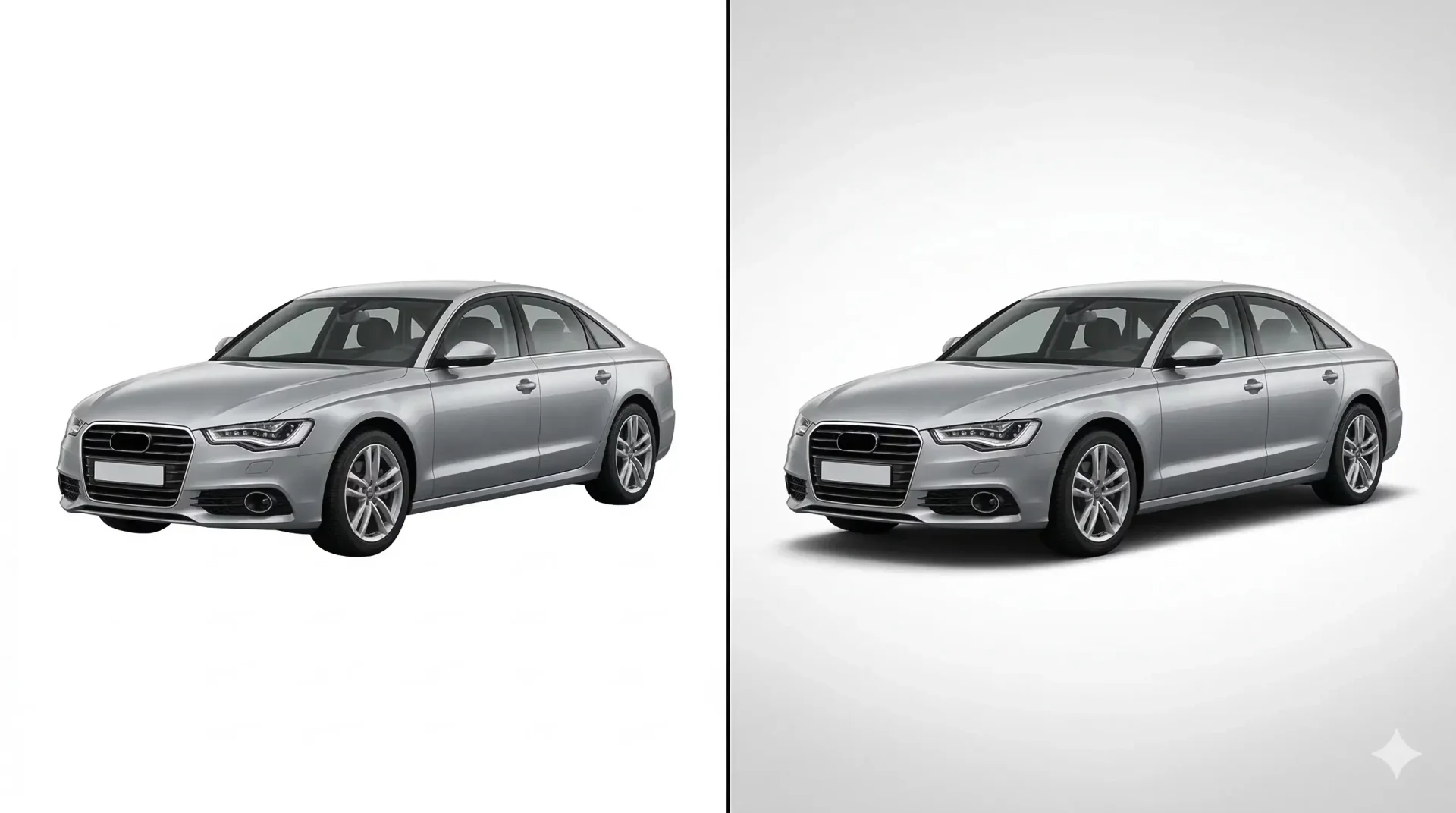
How to Add Realistic Shadows to Car Photos for Listings
Car photo shadows are the detail that separates a convincing listing image from one that looks obviously composited. Remove a vehicle's background and place it on a clean studio floor without a proper shadow, and the car floats. The viewer may not be able to name what looks wrong, but the sense that the image is artificial is immediate. For dealerships running every lot photo through background replacement, shadow quality is what makes or breaks the final result.
This guide covers how shadows work in automotive photography, what goes wrong when they are missing or poorly executed, and how to create realistic ones – both manually and through AI tools like CarBG, which generates shadow grounding automatically as part of its background replacement pipeline.
Why shadows matter in professional car photos
Shadows serve a specific visual function: they anchor an object to a surface. In the physical world, every object that sits on a surface casts a shadow. When a photo removes that shadow (or never had one because the background was replaced), the viewer's brain registers a conflict between what it sees and what it expects. The car appears to hover, which triggers an uncanny valley response – the image looks artificial even if every other element is technically perfect.
For dealer listings, this matters because artificial-looking photos erode buyer trust. A buyer scrolling through marketplace results processes each listing thumbnail in less than a second. An image that feels "off" – even if the buyer cannot articulate why – gets scrolled past. Proper shadow grounding is a small detail with an outsized impact on whether the listing earns a click.
Common shadow problems in dealership inventory photos
Three shadow issues appear repeatedly in dealer listing photos that have gone through background replacement.
No shadow at all. The vehicle sits on a clean backdrop with no contact shadow, no ambient occlusion, and no ground plane interaction. This is the most common problem and the most immediately noticeable. It occurs when the background replacement tool strips the original shadow along with the original background and does not generate a replacement.
Uniform drop shadow. A generic, evenly distributed shadow around the entire base of the vehicle. This looks like a Photoshop drop shadow effect applied to a shape – because that is exactly what it is. Real vehicle shadows are not uniform. They are darkest at the tire contact points and lightest at the edges of the overhangs. A uniform shadow signals "edited" as clearly as no shadow at all.
Shadow direction mismatch. The shadow falls in a direction that conflicts with the lighting visible on the vehicle's body. If the hood highlights indicate light coming from the upper left, but the ground shadow falls to the left as well (instead of to the right), the lighting geometry is impossible. This happens when editors add shadows without analyzing the light direction on the vehicle first.
Types of shadows in automotive photography
Understanding shadow anatomy helps you create or evaluate them accurately. A vehicle on a surface produces three distinct shadow components.
Contact shadow (ambient occlusion)
This is the thin, dark shadow that forms where the tires meet the ground and where the undercarriage is closest to the surface. It is always present regardless of lighting direction because it results from the physical proximity of the car to the ground, not from a specific light source. The contact shadow is the most critical element – it is what visually "plants" the car on the surface. Without it, even a good cast shadow will not fully eliminate the floating effect.
Cast shadow
This is the directional shadow that extends outward from the vehicle based on the primary light source position. In outdoor photography, the sun creates the cast shadow. In a studio, the key light does. The cast shadow's length and direction depend on the light's angle: a high overhead light creates a short shadow beneath the car, while a low side light creates a long shadow extending outward. For most inventory listing backgrounds (neutral studio, white floor), a subtle, relatively short cast shadow works best.
Reflected light shadow
On glossy surfaces (polished showroom floors, wet pavement), the vehicle also creates a soft reflection below it. This is not technically a shadow but serves the same anchoring function. For showroom-style backgrounds, a subtle floor reflection beneath the vehicle adds a premium feel that plain contact shadows alone do not achieve.
How to add realistic car photo shadows manually
If you are editing in Photoshop or a similar tool, this workflow produces natural-looking shadows for vehicle composites. It fits into the broader car photo editing sequence between background replacement and final export.
Step 1: analyze the light on the vehicle
Before touching the shadow layer, study the vehicle. Where is the brightest highlight on the hood or roof? That is where the primary light comes from. Where are the deepest natural shadows on the body (usually the lower door panels and wheel wells on the side opposite the light)? The ground shadow must be consistent with these cues.
Step 2: create the contact shadow
On a new layer beneath the vehicle, use a small (50 to 100 px), soft black brush at 15 to 25% opacity. Paint directly beneath the tires, in the gap between the undercarriage and the ground, and along the bottom edge where the bumpers are closest to the surface. Build density gradually with multiple passes rather than one heavy stroke. The contact shadow should be 2 to 4 pixels wide at its darkest point and feather outward to 10 to 15 pixels.
Step 3: create the cast shadow
On the same or a separate layer, switch to a larger, softer brush (200 to 500 px) at 5 to 10% opacity. Paint a broad shadow area extending from the vehicle in the direction opposite the light source. For a standard overhead-lit showroom background, this shadow extends 50 to 100 pixels outward from the vehicle's base on all sides, darkest near the center and fading to invisible at the edges. For directional lighting, the shadow is longer on one side.
Step 4: adjust opacity and blur
Apply a Gaussian Blur of 3 to 8 pixels to the shadow layer to soften any brush strokes. Reduce the layer opacity to 30 to 50% as a starting point, then adjust until the shadow density matches the overall brightness of the background. A bright white floor needs a lighter shadow (20 to 35% opacity). A medium gray floor can handle a denser shadow (40 to 55%). Check the result at 50% zoom, which approximates how the image will appear as a listing thumbnail.
Best practices for natural-looking vehicle shadows
Six rules separate convincing car photo shadows from obvious edits.
Always include the contact shadow. This is non-negotiable. Even if you skip the cast shadow, the contact shadow at the tire-ground interface must be present. It is the single most important anchoring element.
Match shadow direction to vehicle highlights. If the car's hood highlight is on the left, the cast shadow falls to the right. If the highlight is centered (overhead light), the shadow spreads evenly around the base.
Keep shadow density proportional to background brightness. A shadow that is too dark on a white background looks stamped on. A shadow that is too light on a gray background disappears. Calibrate by squinting at the full image – the shadow should be visible but not the first thing you notice.
Avoid perfectly symmetrical shadows. Real vehicle shadows are slightly uneven because the car's body is not perfectly symmetrical in how it blocks light. A mathematically even shadow looks artificial. Introduce slight asymmetry by varying brush pressure when painting manually, or by accepting the natural variation that AI shadow grounding produces.
Check at thumbnail size. Listing photos are viewed as thumbnails first. A shadow that looks perfect at 100% zoom may be invisible or over-prominent at thumbnail size. Always verify at the display size your buyers will actually see.
Use the same shadow style across your inventory. Just as background consistency matters, shadow consistency matters. If some vehicles have heavy cast shadows and others have only contact shadows, the inventory page looks inconsistent. Standardize your shadow approach and apply it uniformly.
How AI shadow grounding works in car photo editing
AI tools that specialize in automotive imagery generate shadows as part of the background replacement process, not as a separate step. When CarBG processes a vehicle photo, the shadow grounding happens automatically.
The AI analyzes the vehicle's geometry – where the tires contact the ground, where the body overhangs the surface, and how the undercarriage relates to the ground plane. It then generates a contact shadow and a soft cast shadow that match the lighting profile of the selected replacement background. If you choose a showroom backdrop with overhead lighting, the shadow is short and centered. If you choose an outdoor scene with directional light, the shadow adjusts accordingly.
The advantage over manual shadow creation is consistency and speed. Every vehicle in a batch receives the same quality of shadow grounding, calibrated to the same background template. There is no variation from editor to editor, no forgotten shadows on the last 10 images of a Friday afternoon batch, and no opacity miscalibrations from rushing. For dealerships processing volume, this automated consistency is what makes the inventory page look cohesive.
The limitation is creative range. AI shadow grounding produces realistic, functional shadows suited to inventory listings. For marketing hero shots where you want dramatic shadow play, long directional shadows, or wet-floor reflections, manual Photoshop shadow work still offers more creative control. The same division applies here as with background replacement: AI for volume, manual for creative exceptions.
Final thoughts
Car photo shadows are a small detail that carries disproportionate weight in listing credibility. A missing shadow makes an otherwise professional image look composited. A well-executed shadow makes even a simple background replacement look like a studio photograph. Whether you create shadows manually in Photoshop or let AI handle the grounding automatically through a tool built for automotive edge quality, the principle is the same: anchor the vehicle to the surface, match the lighting, and apply the same standard across every image in your inventory.
Frequently asked questions about car photo shadows
Why do my car photos look fake after background removal?
The most common reason is a missing or unrealistic ground shadow. When a background removal tool strips the original scene, it typically removes the natural shadow along with it. Without replacing that shadow, the vehicle appears to hover above the new background. Adding a contact shadow beneath the tires and a soft cast shadow around the vehicle's base immediately restores the realistic appearance. Edge halos and lighting mismatches are secondary factors that also contribute to the fake look.
What type of shadow works best for car dealership listing photos?
For standard inventory listings on a neutral or white background, a combination of a tight contact shadow (dark, narrow, directly at the tire-ground contact points) and a soft ambient cast shadow (lighter, broader, fading outward from the vehicle base) produces the most professional result. This combination mimics overhead studio lighting, which is what buyers expect from professional dealership imagery. Avoid dramatic long shadows or heavy directional shadows for listings – save those for marketing content.
How do I add a shadow to a car photo in Photoshop?
Create a new layer beneath the vehicle layer. Use a soft black brush at 15 to 25% opacity to paint the contact shadow directly beneath the tires and along the undercarriage line. Switch to a larger, softer brush at 5 to 10% opacity for the broader cast shadow extending outward from the vehicle base. Apply a Gaussian Blur of 3 to 8 pixels to soften brush strokes. Adjust the layer opacity until the shadow density matches the background brightness – typically 30 to 50% for most showroom-style backdrops.
Can AI tools create realistic shadows automatically?
Yes. Automotive-specific AI tools generate shadow grounding as an integrated part of the background replacement process. The AI analyzes the vehicle's geometry and the replacement background's lighting to produce a contact shadow and cast shadow that look natural together. The result is consistent across every image in a batch, which is the main advantage over manual shadow creation where quality can vary between images and editors. For inventory listing purposes, AI-generated shadows are indistinguishable from well-executed manual shadows.
Should every car listing photo have a shadow?
Every car listing photo that has undergone background replacement needs a shadow. If the original background was kept (no replacement), the natural shadow from the shooting environment is already present and no additional shadow work is needed. The rule is straightforward: if you replaced the background, you must replace the shadow. Skipping this step on even a few images in a set breaks the visual consistency of the listing and signals to buyers that the photos were edited without care.
What is the difference between a drop shadow and a ground shadow on a car?
A drop shadow is a generic Photoshop effect that creates a uniform, offset shadow behind any object. It has even density, a fixed angle, and no relationship to the object's geometry. A ground shadow (or contact shadow) is specific to where the vehicle actually touches or is closest to the ground surface – darkest at the tires, varying along the undercarriage, and fading naturally at the edges. Ground shadows look realistic because they follow the vehicle's physical shape. Drop shadows look artificial because they treat the car as a flat silhouette rather than a three-dimensional object.
This guide covers how shadows work in automotive photography, what goes wrong when they are missing or poorly executed, and how to create realistic ones – both manually and through AI tools like CarBG, which generates shadow grounding automatically as part of its background replacement pipeline.
Why shadows matter in professional car photos
Shadows serve a specific visual function: they anchor an object to a surface. In the physical world, every object that sits on a surface casts a shadow. When a photo removes that shadow (or never had one because the background was replaced), the viewer's brain registers a conflict between what it sees and what it expects. The car appears to hover, which triggers an uncanny valley response – the image looks artificial even if every other element is technically perfect.
For dealer listings, this matters because artificial-looking photos erode buyer trust. A buyer scrolling through marketplace results processes each listing thumbnail in less than a second. An image that feels "off" – even if the buyer cannot articulate why – gets scrolled past. Proper shadow grounding is a small detail with an outsized impact on whether the listing earns a click.
Common shadow problems in dealership inventory photos
Three shadow issues appear repeatedly in dealer listing photos that have gone through background replacement.
No shadow at all. The vehicle sits on a clean backdrop with no contact shadow, no ambient occlusion, and no ground plane interaction. This is the most common problem and the most immediately noticeable. It occurs when the background replacement tool strips the original shadow along with the original background and does not generate a replacement.
Uniform drop shadow. A generic, evenly distributed shadow around the entire base of the vehicle. This looks like a Photoshop drop shadow effect applied to a shape – because that is exactly what it is. Real vehicle shadows are not uniform. They are darkest at the tire contact points and lightest at the edges of the overhangs. A uniform shadow signals "edited" as clearly as no shadow at all.
Shadow direction mismatch. The shadow falls in a direction that conflicts with the lighting visible on the vehicle's body. If the hood highlights indicate light coming from the upper left, but the ground shadow falls to the left as well (instead of to the right), the lighting geometry is impossible. This happens when editors add shadows without analyzing the light direction on the vehicle first.
Types of shadows in automotive photography
Understanding shadow anatomy helps you create or evaluate them accurately. A vehicle on a surface produces three distinct shadow components.
Contact shadow (ambient occlusion)
This is the thin, dark shadow that forms where the tires meet the ground and where the undercarriage is closest to the surface. It is always present regardless of lighting direction because it results from the physical proximity of the car to the ground, not from a specific light source. The contact shadow is the most critical element – it is what visually "plants" the car on the surface. Without it, even a good cast shadow will not fully eliminate the floating effect.
Cast shadow
This is the directional shadow that extends outward from the vehicle based on the primary light source position. In outdoor photography, the sun creates the cast shadow. In a studio, the key light does. The cast shadow's length and direction depend on the light's angle: a high overhead light creates a short shadow beneath the car, while a low side light creates a long shadow extending outward. For most inventory listing backgrounds (neutral studio, white floor), a subtle, relatively short cast shadow works best.
Reflected light shadow
On glossy surfaces (polished showroom floors, wet pavement), the vehicle also creates a soft reflection below it. This is not technically a shadow but serves the same anchoring function. For showroom-style backgrounds, a subtle floor reflection beneath the vehicle adds a premium feel that plain contact shadows alone do not achieve.
How to add realistic car photo shadows manually
If you are editing in Photoshop or a similar tool, this workflow produces natural-looking shadows for vehicle composites. It fits into the broader car photo editing sequence between background replacement and final export.
Step 1: analyze the light on the vehicle
Before touching the shadow layer, study the vehicle. Where is the brightest highlight on the hood or roof? That is where the primary light comes from. Where are the deepest natural shadows on the body (usually the lower door panels and wheel wells on the side opposite the light)? The ground shadow must be consistent with these cues.
Step 2: create the contact shadow
On a new layer beneath the vehicle, use a small (50 to 100 px), soft black brush at 15 to 25% opacity. Paint directly beneath the tires, in the gap between the undercarriage and the ground, and along the bottom edge where the bumpers are closest to the surface. Build density gradually with multiple passes rather than one heavy stroke. The contact shadow should be 2 to 4 pixels wide at its darkest point and feather outward to 10 to 15 pixels.
Step 3: create the cast shadow
On the same or a separate layer, switch to a larger, softer brush (200 to 500 px) at 5 to 10% opacity. Paint a broad shadow area extending from the vehicle in the direction opposite the light source. For a standard overhead-lit showroom background, this shadow extends 50 to 100 pixels outward from the vehicle's base on all sides, darkest near the center and fading to invisible at the edges. For directional lighting, the shadow is longer on one side.
Step 4: adjust opacity and blur
Apply a Gaussian Blur of 3 to 8 pixels to the shadow layer to soften any brush strokes. Reduce the layer opacity to 30 to 50% as a starting point, then adjust until the shadow density matches the overall brightness of the background. A bright white floor needs a lighter shadow (20 to 35% opacity). A medium gray floor can handle a denser shadow (40 to 55%). Check the result at 50% zoom, which approximates how the image will appear as a listing thumbnail.
Best practices for natural-looking vehicle shadows
Six rules separate convincing car photo shadows from obvious edits.
Always include the contact shadow. This is non-negotiable. Even if you skip the cast shadow, the contact shadow at the tire-ground interface must be present. It is the single most important anchoring element.
Match shadow direction to vehicle highlights. If the car's hood highlight is on the left, the cast shadow falls to the right. If the highlight is centered (overhead light), the shadow spreads evenly around the base.
Keep shadow density proportional to background brightness. A shadow that is too dark on a white background looks stamped on. A shadow that is too light on a gray background disappears. Calibrate by squinting at the full image – the shadow should be visible but not the first thing you notice.
Avoid perfectly symmetrical shadows. Real vehicle shadows are slightly uneven because the car's body is not perfectly symmetrical in how it blocks light. A mathematically even shadow looks artificial. Introduce slight asymmetry by varying brush pressure when painting manually, or by accepting the natural variation that AI shadow grounding produces.
Check at thumbnail size. Listing photos are viewed as thumbnails first. A shadow that looks perfect at 100% zoom may be invisible or over-prominent at thumbnail size. Always verify at the display size your buyers will actually see.
Use the same shadow style across your inventory. Just as background consistency matters, shadow consistency matters. If some vehicles have heavy cast shadows and others have only contact shadows, the inventory page looks inconsistent. Standardize your shadow approach and apply it uniformly.
How AI shadow grounding works in car photo editing
AI tools that specialize in automotive imagery generate shadows as part of the background replacement process, not as a separate step. When CarBG processes a vehicle photo, the shadow grounding happens automatically.
The AI analyzes the vehicle's geometry – where the tires contact the ground, where the body overhangs the surface, and how the undercarriage relates to the ground plane. It then generates a contact shadow and a soft cast shadow that match the lighting profile of the selected replacement background. If you choose a showroom backdrop with overhead lighting, the shadow is short and centered. If you choose an outdoor scene with directional light, the shadow adjusts accordingly.
The advantage over manual shadow creation is consistency and speed. Every vehicle in a batch receives the same quality of shadow grounding, calibrated to the same background template. There is no variation from editor to editor, no forgotten shadows on the last 10 images of a Friday afternoon batch, and no opacity miscalibrations from rushing. For dealerships processing volume, this automated consistency is what makes the inventory page look cohesive.
The limitation is creative range. AI shadow grounding produces realistic, functional shadows suited to inventory listings. For marketing hero shots where you want dramatic shadow play, long directional shadows, or wet-floor reflections, manual Photoshop shadow work still offers more creative control. The same division applies here as with background replacement: AI for volume, manual for creative exceptions.
Final thoughts
Car photo shadows are a small detail that carries disproportionate weight in listing credibility. A missing shadow makes an otherwise professional image look composited. A well-executed shadow makes even a simple background replacement look like a studio photograph. Whether you create shadows manually in Photoshop or let AI handle the grounding automatically through a tool built for automotive edge quality, the principle is the same: anchor the vehicle to the surface, match the lighting, and apply the same standard across every image in your inventory.
Frequently asked questions about car photo shadows
Why do my car photos look fake after background removal?
The most common reason is a missing or unrealistic ground shadow. When a background removal tool strips the original scene, it typically removes the natural shadow along with it. Without replacing that shadow, the vehicle appears to hover above the new background. Adding a contact shadow beneath the tires and a soft cast shadow around the vehicle's base immediately restores the realistic appearance. Edge halos and lighting mismatches are secondary factors that also contribute to the fake look.
What type of shadow works best for car dealership listing photos?
For standard inventory listings on a neutral or white background, a combination of a tight contact shadow (dark, narrow, directly at the tire-ground contact points) and a soft ambient cast shadow (lighter, broader, fading outward from the vehicle base) produces the most professional result. This combination mimics overhead studio lighting, which is what buyers expect from professional dealership imagery. Avoid dramatic long shadows or heavy directional shadows for listings – save those for marketing content.
How do I add a shadow to a car photo in Photoshop?
Create a new layer beneath the vehicle layer. Use a soft black brush at 15 to 25% opacity to paint the contact shadow directly beneath the tires and along the undercarriage line. Switch to a larger, softer brush at 5 to 10% opacity for the broader cast shadow extending outward from the vehicle base. Apply a Gaussian Blur of 3 to 8 pixels to soften brush strokes. Adjust the layer opacity until the shadow density matches the background brightness – typically 30 to 50% for most showroom-style backdrops.
Can AI tools create realistic shadows automatically?
Yes. Automotive-specific AI tools generate shadow grounding as an integrated part of the background replacement process. The AI analyzes the vehicle's geometry and the replacement background's lighting to produce a contact shadow and cast shadow that look natural together. The result is consistent across every image in a batch, which is the main advantage over manual shadow creation where quality can vary between images and editors. For inventory listing purposes, AI-generated shadows are indistinguishable from well-executed manual shadows.
Should every car listing photo have a shadow?
Every car listing photo that has undergone background replacement needs a shadow. If the original background was kept (no replacement), the natural shadow from the shooting environment is already present and no additional shadow work is needed. The rule is straightforward: if you replaced the background, you must replace the shadow. Skipping this step on even a few images in a set breaks the visual consistency of the listing and signals to buyers that the photos were edited without care.
What is the difference between a drop shadow and a ground shadow on a car?
A drop shadow is a generic Photoshop effect that creates a uniform, offset shadow behind any object. It has even density, a fixed angle, and no relationship to the object's geometry. A ground shadow (or contact shadow) is specific to where the vehicle actually touches or is closest to the ground surface – darkest at the tires, varying along the undercarriage, and fading naturally at the edges. Ground shadows look realistic because they follow the vehicle's physical shape. Drop shadows look artificial because they treat the car as a flat silhouette rather than a three-dimensional object.
Address
75 E 3rd street, Sheridan, WY, 82801, USA

Join our monthly email with car photography insights and tool updates
© 2026 CarBG LLC. All rights reserved.