Indstillinger for eksport af Car Picture Editor: Filformater og -størrelser til alle annonceringsplatforme
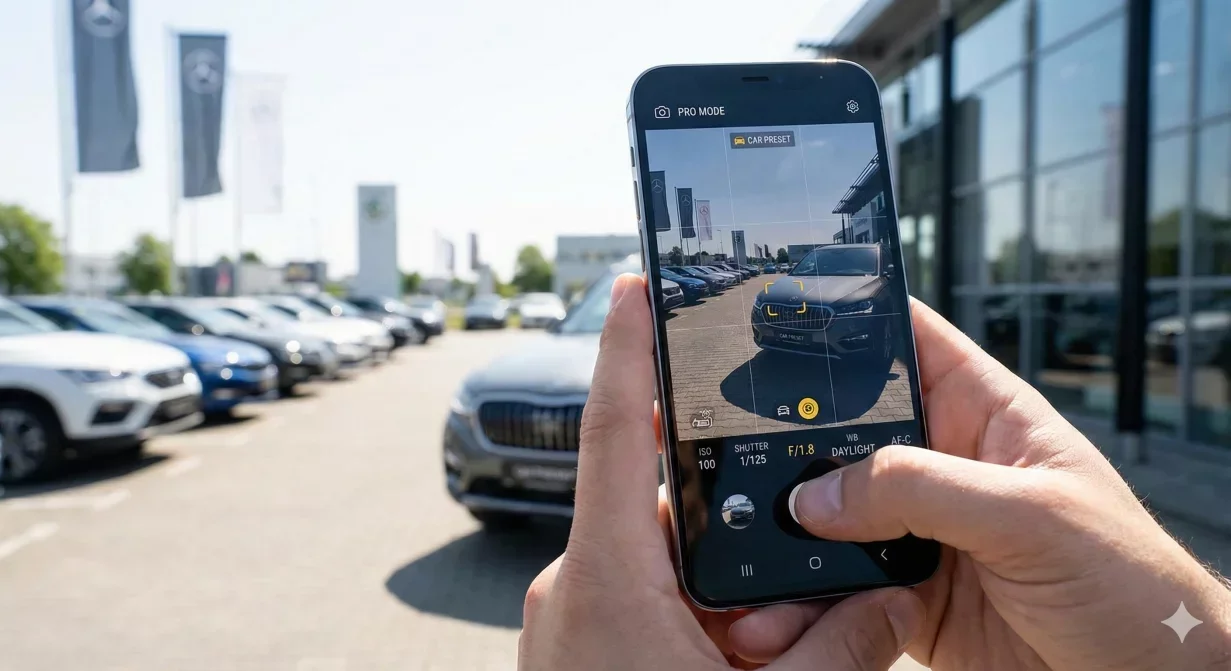
Car picture editor export settings determine whether your processed photos display correctly across different platforms. Car background quality plays a critical role in this process. The same source photo requires different export configurations for Cars.com, Facebook Marketplace, AutoTrader, and your dealer website. This guide provides the specific settings for each major platform and shows how to configure efficient export workflows.
Getting export settings right prevents the quality loss, cropping problems, and display issues that undermine your photo investment.
At a glance
- Why export settings matter
- Understanding file format options
- Platform-specific export configurations
- Compression quality guidelines
- Creating export presets
- How Car Background AI handles export settings
Why export settings matter
Many dealers process photos carefully, then export with default settings that undo their quality work. Each platform has different requirements for dimensions, file size, compression level, and format. Using wrong settings creates problems.
Oversized files slow loading and may exceed platform limits. Undersized files appear pixelated when buyers zoom. Wrong aspect ratios trigger cropping that cuts off vehicle portions. Heavy compression creates visible artifacts. Light compression wastes bandwidth without quality benefit.
Correct export settings match each platform requirements. Your photos display as intended, load quickly, and present your inventory professionally.
Understanding file format options
Most car picture editors offer multiple format choices. Understanding when to use each prevents common mistakes.
JPEG
Use JPEG for all marketplace and website uploads. JPEG provides good quality at reasonable file sizes and is universally supported. All automotive platforms accept and expect JPEG format.
JPEG uses lossy compression, meaning some quality is sacrificed for smaller files. The compression level (quality setting) controls this tradeoff. Higher quality means larger files and less compression artifacts.
PNG
PNG offers lossless compression but creates larger files. For automotive photos, the quality difference from JPEG is usually invisible, while the file size difference is substantial.
Avoid PNG for platform uploads. Use it only for master archival files where you need to preserve maximum quality for future re-editing.
WebP
WebP provides better compression than JPEG at equivalent quality. Modern browsers support it, but not all marketplace platforms accept it yet.
Use WebP for your own dealer website where you control the technical stack. For marketplace uploads, stick with JPEG for guaranteed compatibility.
Platform-specific export configurations
Configure these settings as saved presets in your photo editor for efficient batch exports.
Cars.com export settings
- Dimensions: 1600-2000 pixels on longest edge.
- Format: JPEG.
- Quality: 82-88 percent.
- Target file size: Under 2MB per image.
- Color space: sRGB.
CarGurus export settings
- Dimensions: 1400-1800 pixels on longest edge.
- Format: JPEG.
- Quality: 78-85 percent.
- Target file size: Under 1.5MB per image.
- Color space: sRGB.
AutoTrader export settings
- Dimensions: 1600-2000 pixels on longest edge.
- Format: JPEG.
- Quality: 80-88 percent.
- Target file size: Under 2MB per image.
- Color space: sRGB.
Facebook Marketplace export settings
- Dimensions: 1200 pixels on longest edge.
- Format: JPEG.
- Quality: 88-95 percent (start higher because Facebook compression reduces quality significantly).
- Target file size: Under 1MB per image.
- Color space: sRGB.
Dealer website export settings
- Hero images: 2000-2400 pixels on longest edge for high-quality display and zoom.
- Thumbnails: 400-600 pixels, generated as separate files for fast loading.
- Format: JPEG for universal compatibility, or WebP with JPEG fallback.
- Quality: 82-90 percent for main images, 70-80 percent for thumbnails.
Compression quality guidelines
Compression quality settings balance file size against visible quality.
Understanding quality numbers
Most editors express quality as percentage from 0-100. Quality below 70 typically shows visible artifacts in detailed areas. Quality above 95 provides minimal quality benefit but significantly larger files. The 75-90 range usually offers the best balance.
What to watch for
Compression artifacts appear first in areas of gradual color transition, like paint surfaces and skies. Zoom to 100 percent view and examine these areas. If you see banding, blockiness, or unnatural color patterns, increase quality.
Platform re-compression
Remember that platforms will compress your uploads further. A photo exported at 80 percent quality might display at effectively 60-70 percent after platform processing. Start with higher quality than seems necessary for platforms that compress aggressively.
Creating export presets
Efficient workflows use saved presets rather than configuring settings for each export.
Preset organization
Create clearly named presets for each destination: CarsComHero, CarGurusGallery, FacebookMarketplace, DealerWebsiteMain. Clear names prevent selection errors during busy batch exports.
Preset contents
Each preset should specify:
- dimensions
- format
- quality level
- color space
- file naming template
How Car Background AI handles export settings
Car Background AI includes pre-configured export presets for major automotive platforms. The platform handles dimension, compression, and format optimization automatically based on selected destination.
Batch export applies correct settings across complete vehicle sets. Select your target platform and export marketplace-ready files without manual configuration per photo.
Final thoughts
Car picture editor export settings bridge the gap between processing quality and platform display. Correct configuration ensures your photos survive platform processing while loading quickly and displaying correctly. Set up presets for each platform you use, verify results periodically, and update settings as platforms evolve. Try Car Background AI preset exports to see how automated configuration simplifies multi-platform workflow.
Frequently asked questions
What JPEG quality setting should I use for car photos?
75-90 percent for most platforms. Use higher values (85-95) for platforms that re-compress heavily like Facebook. Use moderate values (78-85) for platforms with less aggressive processing. Below 75 typically shows visible artifacts.
Why do my photos look worse after uploading?
Platform re-compression degrades quality further. Start with higher quality than seems necessary. If you export at 75 percent and the platform compresses further, final quality may be unacceptably low.
What dimensions should car listing photos be?
1400-2000 pixels on longest edge for most marketplaces. This provides zoom capability without excessive file size. Avoid both undersized images that pixelate and oversized images that provide no display benefit.
Should I use PNG instead of JPEG for better quality?
No for marketplace uploads. PNG files are significantly larger without visible quality improvement for photographs. Platforms often convert to JPEG anyway. Use JPEG for all uploads; reserve PNG for archival masters only.
How do I prevent photos from being cropped on upload?
Match the aspect ratio each platform expects. Most automotive platforms use 4:3 or 16:9. Facebook prefers 1.91:1. Export at the correct ratio and center vehicles to avoid problematic cropping.
Do I need different exports for mobile versus desktop?
For marketplace platforms, no. They handle responsive delivery themselves. For your dealer website, consider generating multiple size variants to optimize loading speed across devices.

Tamas Magda
Medstifter, vækst og partnerskaber hos Car Background AI
Tamas Magda er medstifter af Car Background AI (carbackground.ai, CarBG), en AI-billededitor til biler, der udskifter baggrunde på forhandleres lagerfotos. Han står i spidsen for partnerskaber, vækst og forretningsarkitektur og arbejder med udviklingsteamet på produktkøreplanen og med forhandlere om, hvad deres onlineannoncer faktisk har brug for. Han har en baggrund inden for venture building i APAC og MENA og skriver om præsentation af køretøjer, forhandleres fotoarbejdsgange og brugen af AI på annoncebilleder uden at ændre selve bilen.
Tamas er medstifter af Car Background AI og har en økonomisk interesse i virksomheden. Artikler, der nævner Car Background AI, afspejler denne relation.